Uninstalling the Windows Sensor
The Windows sensor can be uninstalled using one of the following methods.
- Manually
- Using SCCM or Intune
Manually uninstall the Windows sensor
Navigate to the directory that contains the .msi package and run the following command as an Administrator user.
msiexec.exe /X <cyberhaven-package-name>.msi
For example:
msiexec.exe /X Cyberhaven-24.09.06.9660-3aec1e+.msi
If Uninstall Protection is enabled, you must generate an uninstall password under the Deployment group settings on the Endpoint Sensors page.
See: Uninstalling the Sensor with 'Uninstall Protection' Enabled.
Then, run the following command.
msiexec.exe /X <cyberhaven-package-name>.msi /quiet UNINSTALL_PASSWORD=1234-your-unique-password
For example:
msiexec.exe /X Cyberhaven-24.09.06.9660-3aec1e+.msi /quiet UNINSTALL_PASSWORD=l9kElp...pd3j
Uninstall the Windows sensor using SCCM or Intune
Before you begin the uninstall process, verify whether Uninstall Protection is enabled. If Uninstall Protection is enabled, then you must include the uninstall password in the command.
Learn more about Uninstall Protection: Enable Uninstall Protection
You can uninstall the sensor using one of the following two options.
Option 1: Manually get the product ID
Follow these steps:
- Get the product ID using Regedit (
HKLM\SOFTWARE\Microsoft\Windows\CurrentVersion\Uninstall).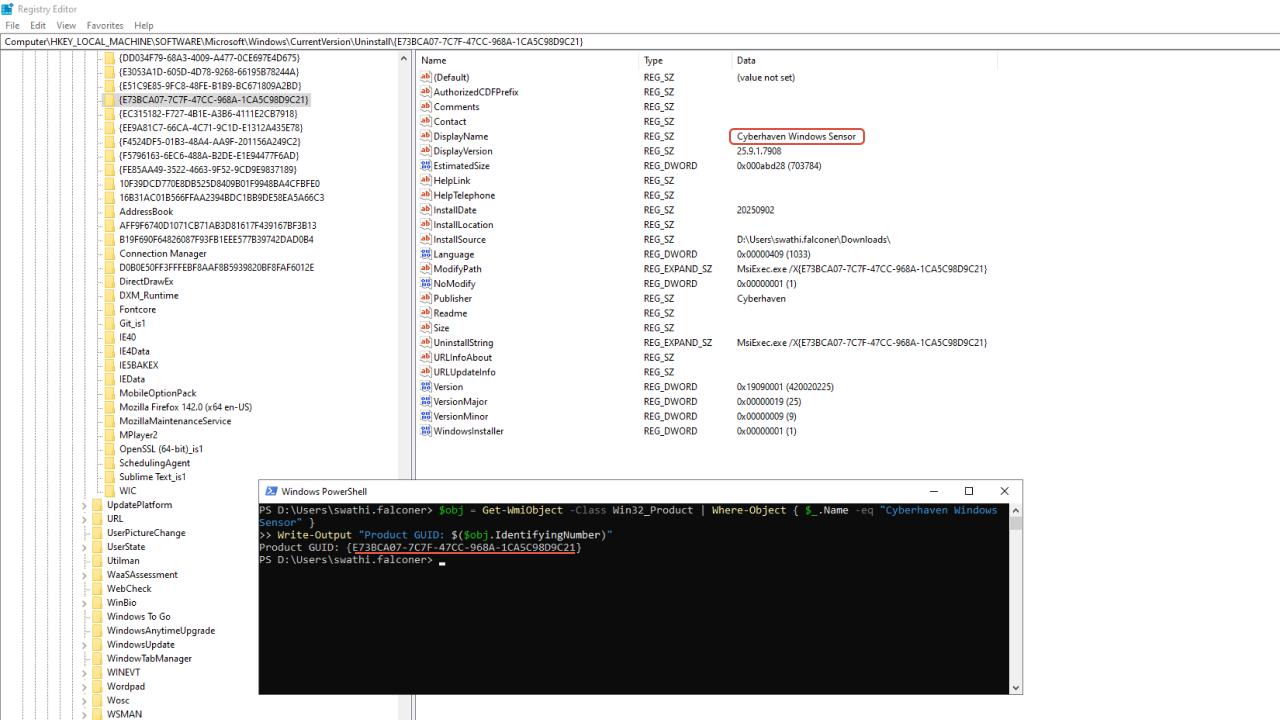
- To get the product IDs from multiple host machines, run the following command in PowerShell:
$obj = Get-WmiObject -Class Win32_Product | Where-Object { $_.Name -eq "Cyberhaven Windows Sensor" }
Write-Output "Product GUID: $($obj.IdentifyingNumber)"
- Uninstall the Endpoint Sensor using the
msiexeccommand.
msiexec /uninstall {F6EB8228-FBA9-4FBC-87D7-A9972A03EE70} /quiet

Then, run the following command.
msiexec /uninstall {F6EB8228-FBA9-4FBC-87D7-A9972A03EE70} /quiet UNINSTALL_PASSWORD=<enter-your-unique-password>
Option 2: Using PowerShell script
Run the following PowerShell script either manually or via SCCM. The script automates the step to get the GUID of the Cyberhaven version installed on the machine:
Write-Output "Looking up Cyberhaven product GUID"
$obj = Get-WmiObject -Class Win32_Product | Where-Object { $_.Name -eq "Cyberhaven Windows Sensor" }
Write-Output "Product GUID: $($obj.IdentifyingNumber)"

Write-Output "Uninstalling Cyberhaven"
Start-Process msiexec.exe -Wait -ArgumentList "/quiet /x $($obj.IdentifyingNumber)"
If Uninstall Protection is enabled, you must generate an uninstall password under the Deployment group settings on the Endpoint Sensors page.
See: Uninstalling the Sensor with 'Uninstall Protection' Enabled.
Then, run the following PowerShell script.
Write-Output "Looking up Cyberhaven product GUID"
$obj = Get-WmiObject -Class Win32_Product | Where-Object { $_.Name -eq "Cyberhaven Windows Sensor" }
Write-Output "Product GUID: $($obj.IdentifyingNumber)"

Write-Output "Uninstalling Cyberhaven"
Start-Process msiexec.exe -Wait -ArgumentList "/quiet UNINSTALL_PASSWORD=<enter-your-unique-password> /x $($obj.IdentifyingNumber)"
NOTE If Uninstall Protection is enabled and you try to uninstall the sensor without an uninstall password, then the uninstall operation will fail.
Handling errors on uninstall
If you run into uninstall issues with msiexec then you can use the PowerShell script described in the "Handle installer rollback issues" section of Troubleshooting the Windows Sensor.